
Passkeys explained: the phishing-resistant way to sign in
Double-click to edit...
Fiona in accounts is working through her inbox when a message arrives from Microsoft saying her mailbox is almost full and messages will start bouncing unless she signs in and clears space. She clicks the link, the familiar sign-in page comes up, she types her password, and the page takes her back to Outlook. Nothing looks wrong, so she gets on with her day.
The page was not Microsoft's. It was a copy, hosted overseas, and the password she typed went straight to the person who built it. Within the hour they were reading her email, and by the afternoon they had sent a convincing note to a customer asking them to pay the next invoice into a new bank account.
This is how almost every phishing scam in New Zealand ends: an ordinary person typing a real password into a page that only looked real.
A passkey makes this far harder to pull off. It is a way of confirming who you are that does not rely on a password at all, so there is nothing for Fiona to type and nothing for the scammer to collect. Passkeys are already built into your phone and laptop, your bank probably offers one, and if your business runs on Microsoft 365, your team is about to be asked to set one up.
What a passkey is
A passkey lets you sign in to a website or app the same way you unlock your phone, with your fingerprint, your face or a short PIN. If you have opened your banking app lately without typing anything, you have probably used one already.
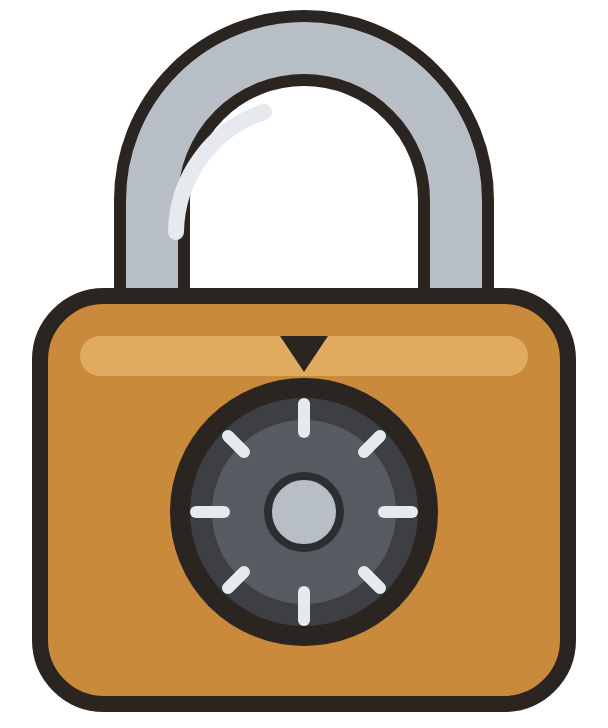

A password is a combination.
It is a secret, and once someone else learns it the padlock is as good as theirs.
A passkey is a house key.
It stays in your pocket, a stranger who sees it cannot use it, and it only fits your own front door.
When you set one up, your device creates a key that never leaves it, and the website keeps a matching lock. When you sign in, the two check each other in the background and you are in. Nothing is typed, nothing is sent across the internet that a scammer could catch, and the website never holds anything worth stealing.
Common questions about passkeys
What if I lose my phone?
Passkeys can be backed up through your Apple, Google or Microsoft account, so a new phone picks them up. Keep a second way to sign in, such as an authenticator app, until you are confident the passkey is working everywhere you need it.
What about the shared computer at reception?
A passkey belongs to a person, not a machine, so a shared reception PC or workshop laptop needs a different approach, and the right one depends on how your office is set up. Options include a small physical security key that plugs into the computer, or giving each person their own sign-in on the PC so they can still use their own passkey. We can look at your setup and explore the secure alternatives with you.
Do I still need a password manager?
Yes. Not every website offers passkeys yet, so your team will still have passwords to look after for a while. Our next Cyber Smart Week article covers choosing a password manager for a small team.
Why a fake page gets nothing
Every password works on the trust that the page in front of you is the real one, and scammers have become very good at building pages that pass that test. Fiona's page had the right logo, the right colours and, at a glance, the right web address.
The same trick catches the six-digit codes from an authenticator app, the multi-factor authentication most businesses added over the last few years to confirm it is really you signing in. The fake page asks for the code as well and passes it straight through to the real site before it runs out.
A passkey is made for one website only. If Fiona had been using one, her phone would have looked at the copy page, recognised it was not Microsoft, and refused to unlock. She could not have handed anything over, because there was nothing to hand. That is what the industry means when it calls passkeys phishing-resistant.
What is changing in Microsoft 365
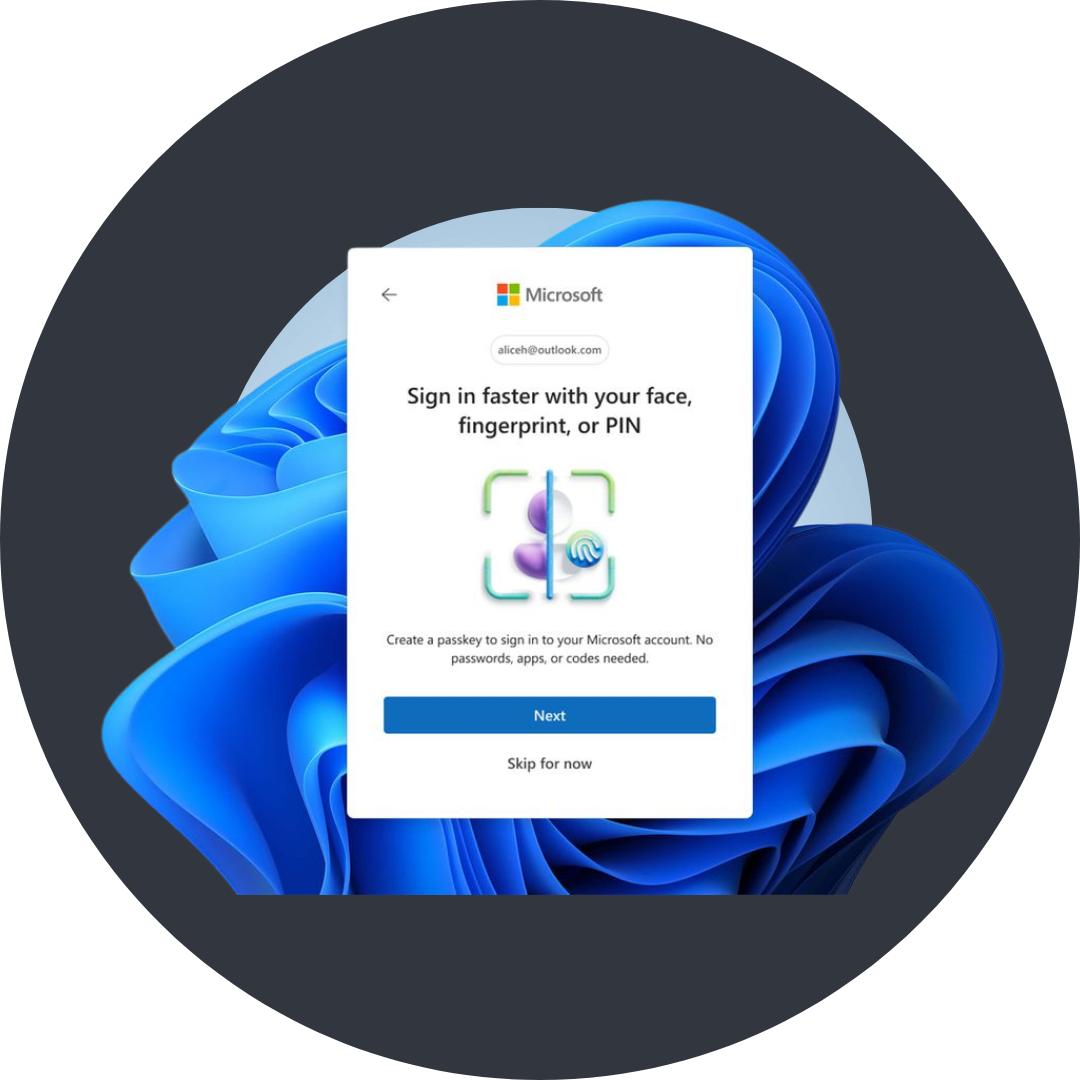
From September 2026, Microsoft is rolling passkeys out as the default way to sign in to Microsoft 365. As the change reaches each business, staff who currently confirm their identity by text message or phone call will be prompted to set up a passkey the next time they sign in.
It pays to tell your team the change is coming, so nobody mistakes the prompt for a scam and closes it. If you would like a hand planning the rollout, we are more than happy to help with it as a project.
What to do this Cyber Smart Week
Turn on passkeys for the accounts that matter most: your email, your bank and your Microsoft 365 sign-in.
Tell your team the Microsoft prompt is coming, so nobody ignores it thinking it is a scam.
Decide how shared devices will work before the rollout reaches you.
Keep a backup way to sign in until passkeys are working everywhere.
How Think Concepts can help
Passkeys take the password out of the picture, so a scam page has nothing to collect. Getting there in a business takes a little preparation, and that is what we do.
We can help get your team and shared devices ready for passkeys, simply reach out for a quote.
Managed services clients have the option to add ThinkAssure for 365, which monitors the security settings in your Microsoft 365 environment, so once it is in place we can check that passkeys are switched on.
Because passkeys protect sign-ins but not judgement, phishing awareness training through Phriendly Phishing helps your team spot the next Fiona moment before it happens.
If your business is not with us yet, we can review your Microsoft 365 setup and get everyone ready.